SongForge / A practical guide
Keep an unreleased demo close while you explore its next version
Follow a demo from source recording to local generation, Library and export with SongForge on Mac.
Local music generation is useful when an unfinished recording and its lyrics belong in your working files. After compatible model setup, SongForge’s normal standalone workflow generates on the Mac and retains takes in a local Library. You can explore a musical direction while keeping a clear path from source to the file you decide to share.
Imagine a collaborator sends you an unreleased chorus. You have permission to try new arrangements, but the vocal is still a rough sketch. Before choosing a tool, ask where the recording will be processed and what files you want back at the end. Those two answers affect the whole session.
Follow one demo through the process
For a suggested project, create a working folder containing the collaborator’s authorized WAV, your own lyric draft and a note about the arrangement you want to try. Keep the original recording intact. Name the working copies clearly so that a generated take is easy to distinguish from the source.
In SongForge, use a supported source in Rework or describe the musical direction for a fresh generation. If the audio contains a phrase you want to retain, give Rework that source and a focused description. If the source is mainly a reminder of the mood, a fresh brief may be enough.
The benefit of the local workflow becomes concrete here. The ordinary standalone generation step does not require sending the creative recording to a hosted music-generation account. Model setup and normal generation remain separate parts of the process.
Know which connections belong to setup
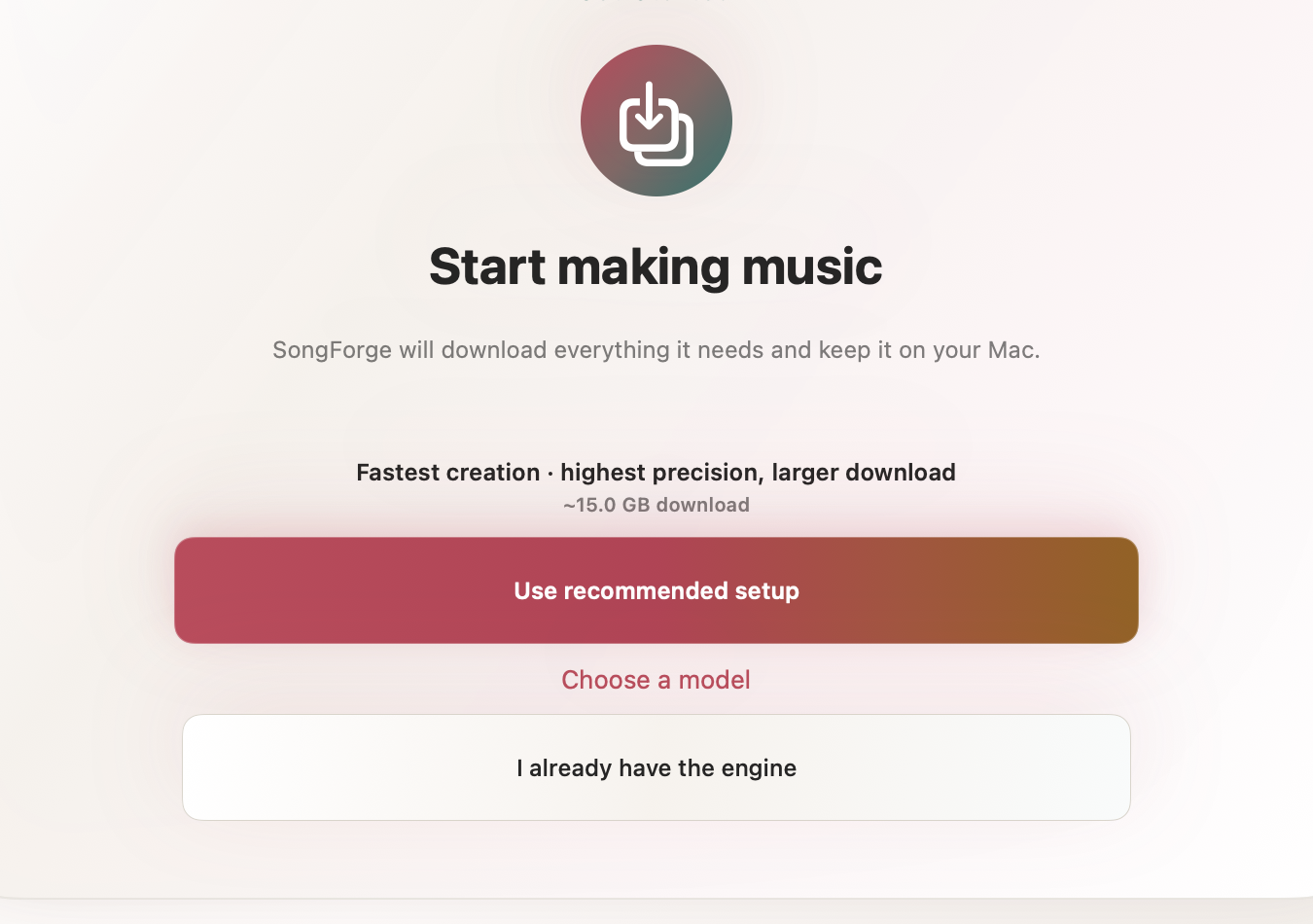
SongForge uses compatible ACE-Step model files. A first setup can involve a download or existing compatible local files. Those files take approximately 6–15 GB depending on quantization. Give the Mac enough storage before promising yourself a quick session.
The app also has network-related operations for purchases, support links and an optional remote backend that the user explicitly configures. Choose the standalone local workflow for this example. A local model does not make every action involving the app or computer independent of the network.
Once the model is ready, keep the musical question small. A useful first request might be “a lighter verse with more room around the chorus vocal.” It is specific enough to guide the listening pass and modest enough that you can tell whether the take helped.
Decide what to keep in the Library
Play the result before making another version. You may hear a strong chorus entrance, a useful accompaniment or a transition that does not fit. Keep a note beside the take about what earned its place. When you return tomorrow, that note saves you from judging the whole collection again.
SongForge retains takes for local listening and further work. With Pro, export the selected result as MP3 or WAV, then inspect the file you intend to send. Choose a filename that makes the version clear and send only the materials your collaborator needs.
A local workflow gives you more direct control over these working copies. It also makes backup a visible part of the project. Keep a recoverable copy of the source, selected output and the notes you would need to resume the work.
Listen to an actual local generation
Main Character Sunday is an unedited SongForge example labelled indie dance and nu-disco at 118 BPM. It is a public demonstration you can hear before downloading the engine. The collaborator scenario in this article is a suggested workflow, while the demo track has its own recorded generation provenance. Listen to Main Character Sunday.
SongForge is available for macOS 14 or later, with Apple silicon recommended. Three completed creations are included after model setup. The one-time Pro unlock enables continued creation and MP3/WAV export.
Explore SongForge · Download on the Mac App Store · High Road Software