LumenForge / A practical guide
Revisit an AI image with the context you saved
Use LumenForge history to recover a prompt, model and settings, then prepare a deliberate variation from a real recorded example.
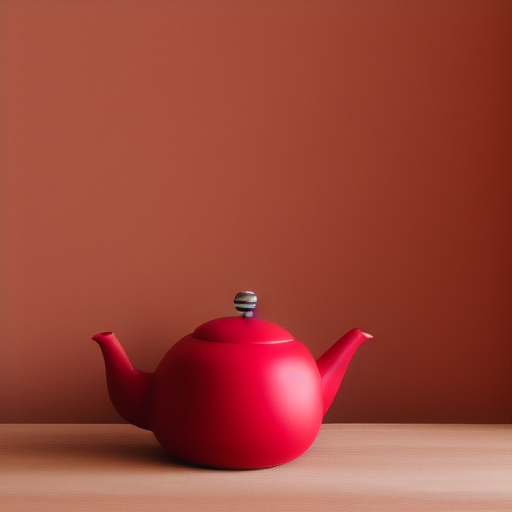
To continue an AI image next week, keep more than the picture. Retain the prompt, model identity and generation settings with the result. LumenForge’s history and reuse workflow gives you a way back to that context, so the next variation can begin from a choice you already understand.
A promising image often arrives near the end of a session. You like its colour and lighting, then close the app. A few days later, the brief changes. Without the source context, you have to guess what made the image work. A saved generation record turns that guess into a more concrete starting point.
Follow one image back to its record
The pictured example comes from a recorded LumenForge session.
A red ceramic teapot on a wooden table, soft daylight, product photograph
The record identifies model SD 1.5 Q4_0, image size 512 × 512, 25 steps, CFG 7, sampler DPM++ 2M Karras and seed 2044155762. It gives the image a context you can inspect before deciding what to change.
The shape also gives you a concrete review question. If the image is meant to suggest an ordinary teapot, you might want a more conventional handle and spout in the next version. The saved record makes it easier to work from the part you like while stating the part that needs another attempt.
Recover the setup before revising it
Open the relevant project and find the result in history. Inspect the stored prompt and parameters. Use the available reuse action to prepare the next job, then review those values before starting the next generation.
This is a good time to check the model too. A file with the same short name may have changed since the first session. Keep the actual model identity and any required components available if you plan to revisit a sequence over time.
A seed is one useful part of that record. Software, model files, settings and execution details also affect a generated result. The practical aim is a traceable process with enough context to resume the work. General documentation on diffusion tools explains why a seed alone does not establish identical output across every setup. Seed and reproducibility guidance.
Give the next variation one clear purpose
For this example, try a proposed revision that names the intended form more explicitly.
Red ceramic teapot with one curved spout and one loop handle, full object visible on a wooden table, soft daylight, product photograph
Keep the original result in history. Review the next image on its own merits, then compare how each one handles the object and light. A new prompt can express the shape you want, and the generated image still needs to be inspected.
For a closer experiment, preserve the model and the settings you can control while changing the chosen instruction. If you change the seed as well, record that choice with the job. Your future self will then know which comparison you were trying to make.
Build a collection you can return to
LumenForge brings projects, model library, queue and history into one Mac workspace. Its value grows when the session has more than one promising image. You can retain selected results, recover their creative context and prepare related work from the same project.
The documented requirements are macOS 14 or later, Apple silicon and at least 16 GB unified memory, with compatible model files and enough storage for the workload. Supported generation runs locally after setup.
The downloadable website preview has a free tier: unlimited watermarked images within its 1024-class resolution limit, three successful trial videos and one active job. Larger images, watermark removal, LoRA and batches require Pro. Pro purchasing is not open on the site yet; this download does not grant a Pro licence.
Explore LumenForge · Download the notarized Mac preview · High Road Software