Cat Fidget / A practical guide
Choose the photo before you ask it to become a desktop cat
How to choose a readable source, inspect the free on-device preview and understand the optional desktop unlock.
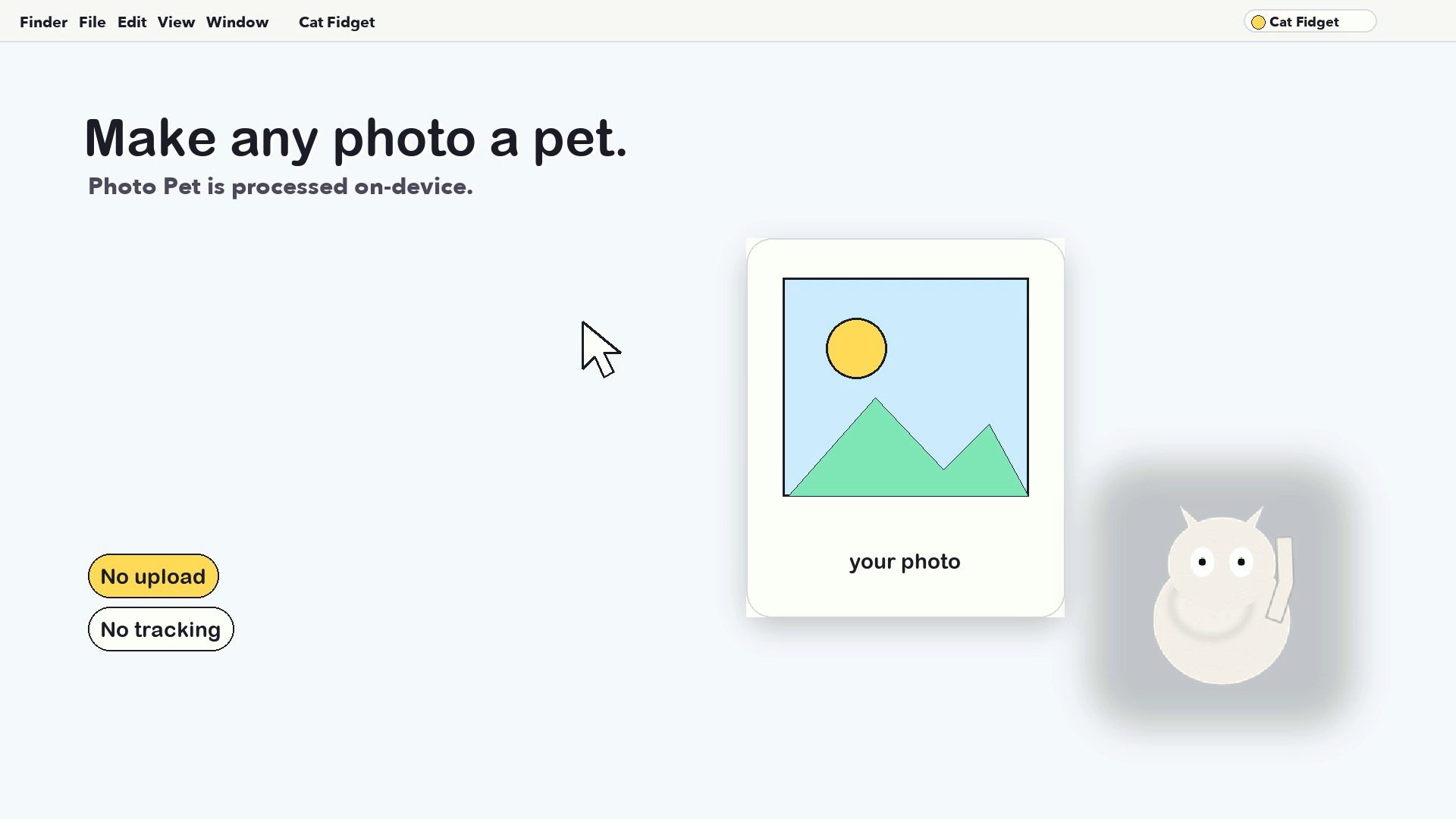
A familiar cat on the desktop can be more personal than another pre-drawn skin. Cat Fidget lets you choose a photo, preview a custom pet created on the Mac and decide whether you want to use that pet on the desktop.
The distinction matters: creating the preview is free and local. Activating the custom photo pet on the desktop requires the optional purchase path shown in the app. The photo is chosen through a file picker rather than through standing access to the whole Photos library.
A good source image makes the preview easier to judge. Here is how to choose one without turning the process into a photography project.
Choose a photo with one clear subject
Use an image where the cat is large enough to recognise and not hidden behind furniture, blankets or another animal. A simple background gives on-device background removal a clearer boundary to work with.
Side light or window light often preserves fur detail better than a dark room. Avoid strong motion blur. A full-body pose can make a more readable desktop companion, but a distinct seated or curled pose can work when the silhouette is clear.
You do not need to upload the image to High Road Software. Cat Fidget asks you to select the file and processes the background on the device for this flow. The privacy page explains how selected images are handled.
Preview before buying anything
Open the wardrobe, choose Custom Photo and add the image. Let the app prepare the cutout, then inspect the preview rather than assuming the first file is the best one.
Look at three details:
- Silhouette. Are ears, tail and paws separated cleanly enough to read at desktop size?
- Scale. Can you recognise the cat when the preview is small, or does the photo depend on tiny facial detail?
- Background remnants. Does any furniture or floor remain attached to the cutout?
If the boundary looks wrong, choose another photo. Cropping closer before import may help, but do not keep correcting a weak source indefinitely. A clearer picture is usually the faster fix.
Understand the free and paid boundary
The custom-photo preview is available without paying. Using that custom pet on the desktop is an optional unlock. The app also includes Classic Black and the core care experience for free, so you can test whether the companion belongs in your Mac routine before buying a custom look.
Other cats, hats, eyewear, neckwear, body items, back items and bundles are optional. The Cat Lover Pass is a one-time purchase, not a subscription. Apple displays the exact local price and purchase terms in the Mac App Store sheet.
Check the result in a real desktop layout
A large wardrobe preview is not the final test. Put the custom pet near the menu bar, open the apps you normally use and see whether the silhouette remains recognisable against light and dark windows.
Try one behaviour at a time. Calm can make the cutout easier to read; a more active behaviour may reveal awkward edges that were not obvious while the preview was still. Move or change the setup if it covers a control. A personal desktop detail should not compete with the task underneath it.
Use a photo you are comfortable keeping on the Mac
A pet photo can contain more than the animal: a room, a child, a location clue or another person. Crop out anything you do not want in the selected file before importing it. Local processing reduces the service-side boundary; it does not make the original photo less personal.
Cat Fidget does not need a named account for this workflow. Purchases are handled through Apple. If you remove the app or move to another Mac, do not assume the custom source photo is a backup. Keep the original image in your own photo library or backup system.
What makes a good custom desktop pet?
The best result is not necessarily the sharpest photograph. It is the image whose outline still reads when it becomes a small companion. A slightly imperfect phone photo with a clear pose can work better than a beautiful portrait lost in a complicated background.
Start with one photo, judge the free preview and only then decide whether the desktop unlock is worth it for you.
Pick one clear photo, inspect the free cutout preview and test Cat Fidget with the included cat before choosing an optional unlock.