LumenForge / A practical guide
A model fits on disk. Plan the image job in memory too.
Plan a first local image-generation job on Mac by distinguishing model storage, unified memory and the selected workload.
Model storage and generation memory answer different questions. Storage holds the files. Unified memory supports the model and the work it performs during a job. LumenForge’s model and generation workflow lets you start with a supported setup, inspect one result and increase the workload with a clear record of the changes.
A compact model download can make local generation look like a simple storage decision. The image job still needs working space, and other applications use memory too. Planning the first session around one clear task makes it easier to see whether the selected setup suits your Mac.
Start from the job you actually want
Suppose your goal is a small product concept image for an internal review. Begin with one supported image model and a modest output size. Leave a large collection of queued variations until you have seen one job complete.
LumenForge documents macOS 14 or later, Apple silicon and at least 16 GB of unified memory. These are starting requirements for the app. The selected model, image size and workload can call for more resources.
| Resource | What it supports | A useful first check |
|---|---|---|
| Free storage | Model files, projects and generated media | Is there room for the model and the work you plan to keep? |
| Unified memory | The model and active image-processing work | Does the selected model fit the Mac and the chosen job? |
| Time | Setup, generation and review | Can the first session include a complete result and a visual review? |
A recorded compact image job
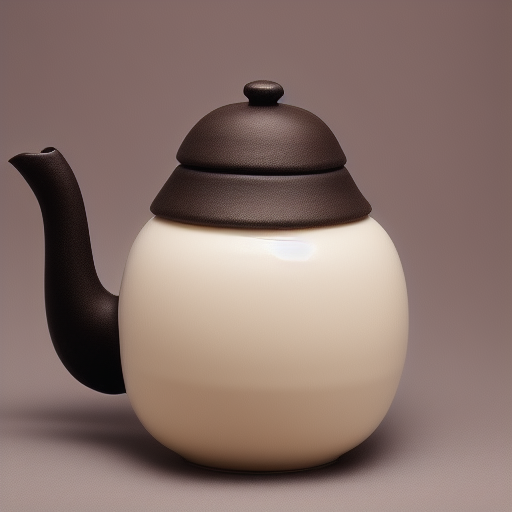
This actual LumenForge example used a quantized SD 1.5 model and a 512 × 512 image.
Studio product photograph of a handmade ivory ceramic teapot, soft side light, dark stone background, close-up detail
The saved record identifies SD 1.5 Q4_0, 25 steps, CFG 7, DPM++ 2M Karras and seed 2113242897. Those facts describe this completed job. They make a useful example of how to record an initial setup before trying a heavier workload.
Increase one part of the workload
After the first result, decide what you want from the next attempt. A larger output may help you assess detail, within your access level. A different compatible model may give you a different visual vocabulary. More sequential generations may help you explore a broader selection while keeping one job active at a time.
Make the change you need, then inspect the outcome and how the session behaves. If several changes arrive at once, it becomes harder to identify what made the job more demanding. Keeping the original configuration in history gives you a practical point to return to.
Model format matters too. A familiar name does not establish that a file will work with the selected engine. Check the supported format, required components and the model publisher’s instructions before building the session around it.
Treat the workspace as part of the resource plan
LumenForge combines the model library, projects, queue and history in one native Mac workspace. This helps you see the job as part of a session rather than as a file downloaded in isolation. You can prepare the next creative decision while retaining the context of the last result.
Keep the outputs you need, and make room for the source material and project history you want to revisit. A small first session also gives you a chance to test where the generated files go and how you will back them up.
Once compatible models are installed, supported generation runs on the Mac. Setup downloads and distribution services have their own network activity, described in the privacy documentation. The practical advantage is a local creative loop whose requirements you can inspect before committing to a larger set of images.
The downloadable website preview has a free tier: unlimited watermarked images within its 1024-class resolution limit, three successful trial videos and one active job. Larger images, watermark removal, LoRA and batches require Pro. Pro purchasing is not open on the site yet; this download does not grant a Pro licence.
Explore LumenForge · Download the notarized Mac preview · High Road Software