SongForge / A practical guide
How to Start Making Music with AI in 2027: From Your First Idea to Your First Track
Give one small musical idea a first listen, then decide what deserves a second take.
Perhaps you have a line of lyrics in Notes. Perhaps you would like a little music for a video, or you simply wonder what an idea would sound like outside your head. That is enough to begin. Your first session can have a very small ambition: make one track, listen carefully, and save what you learned.
If you are planning to explore AI music in 2027, you can try that workflow with tools available today. Choose a short project before you choose a complicated setup. A finished experiment is easier to learn from than a folder full of promising beginnings.
Give the music a job
Write down where the track will be heard. A backing cue under speech needs room for a voice. A song sketch may revolve around a lyric. An instrumental you listen to on its own has more space to wander.
Here is an example brief you could adapt: “A warm instrumental for a quiet evening video. Soft piano, brushed percussion, a steady unhurried pulse, and a gentle ending. Leave space for a spoken voice.”
Notice what the brief gives you to judge: instrumentation, movement, space, and an ending. If the first take feels too busy, you have something specific to change. “Make it amazing” gives you much less to work with.
Choose where generation will happen
Some tools generate music through an online service. Others run a compatible model on your own computer. Compare the practical details: supported hardware, model downloads, account requirements, usage limits, export formats, and the terms that apply to your intended use.
A local workflow has setup work. Models take storage, and generation time depends on the computer, the model, and the requested track. Hosted tools have their own connection, pricing, and data considerations. Pick the arrangement you can understand and maintain.
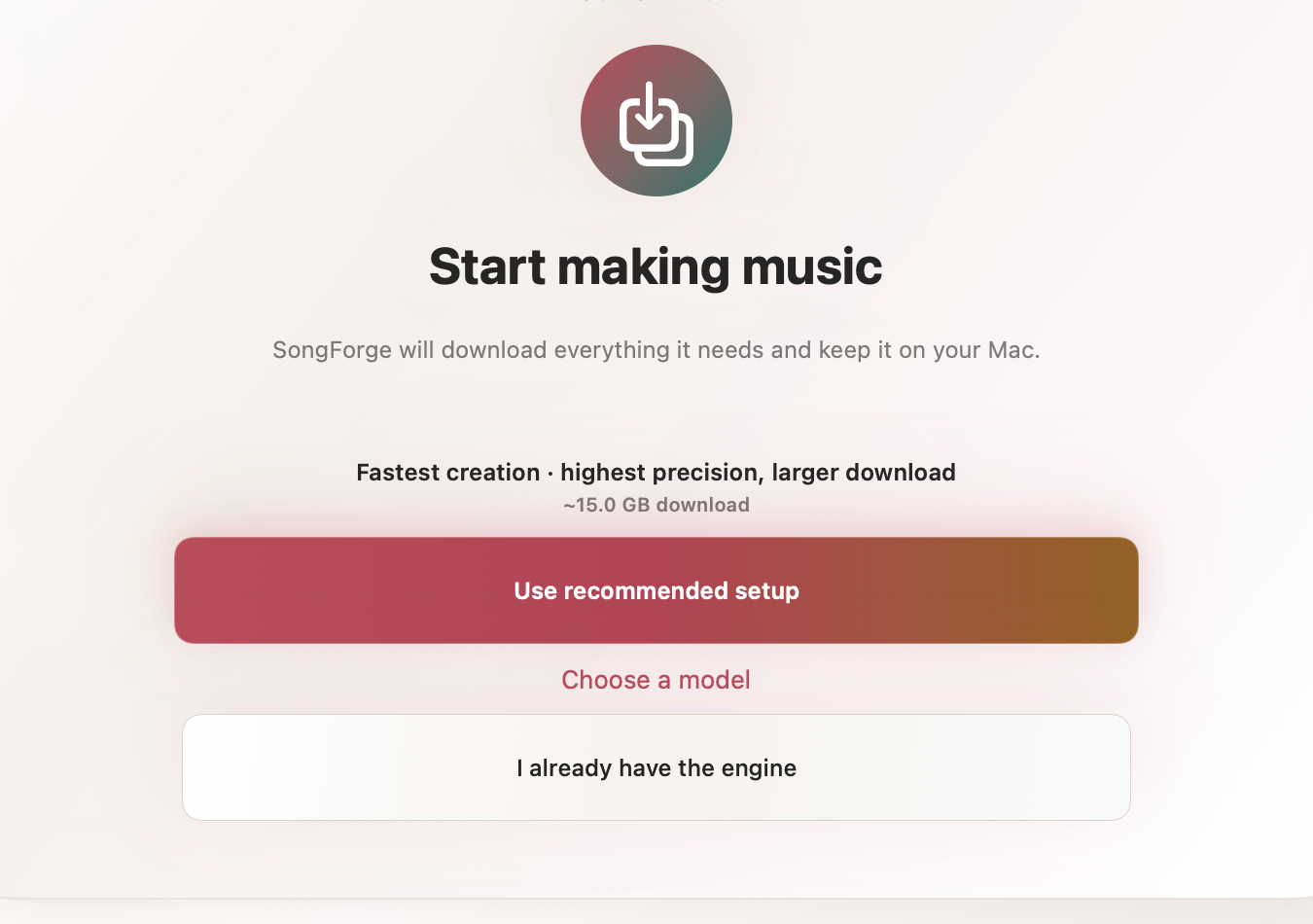
We build SongForge, a native Mac app that generates music locally after a compatible model has been installed. It requires macOS 14 or later, with Apple silicon recommended. The model setup shown above is part of that first session; allow storage and download time for it.
Make one first take
In SongForge's Simple workspace, start with a clear description. Keep your first request focused on a single musical direction. You can explore other controls once you have heard what that description produces.
Read the setup state before you press Generate. If the model is still downloading or preparing, let the app finish that work. After generation, open the take in the Library and listen from beginning to end. Give it a name that describes the idea, such as “Evening piano — first direction.”
SongForge includes three completed creations before its optional Pro unlock. The current local purchase price appears in the App Store. Plan your first experiments deliberately so those attempts tell you something useful.
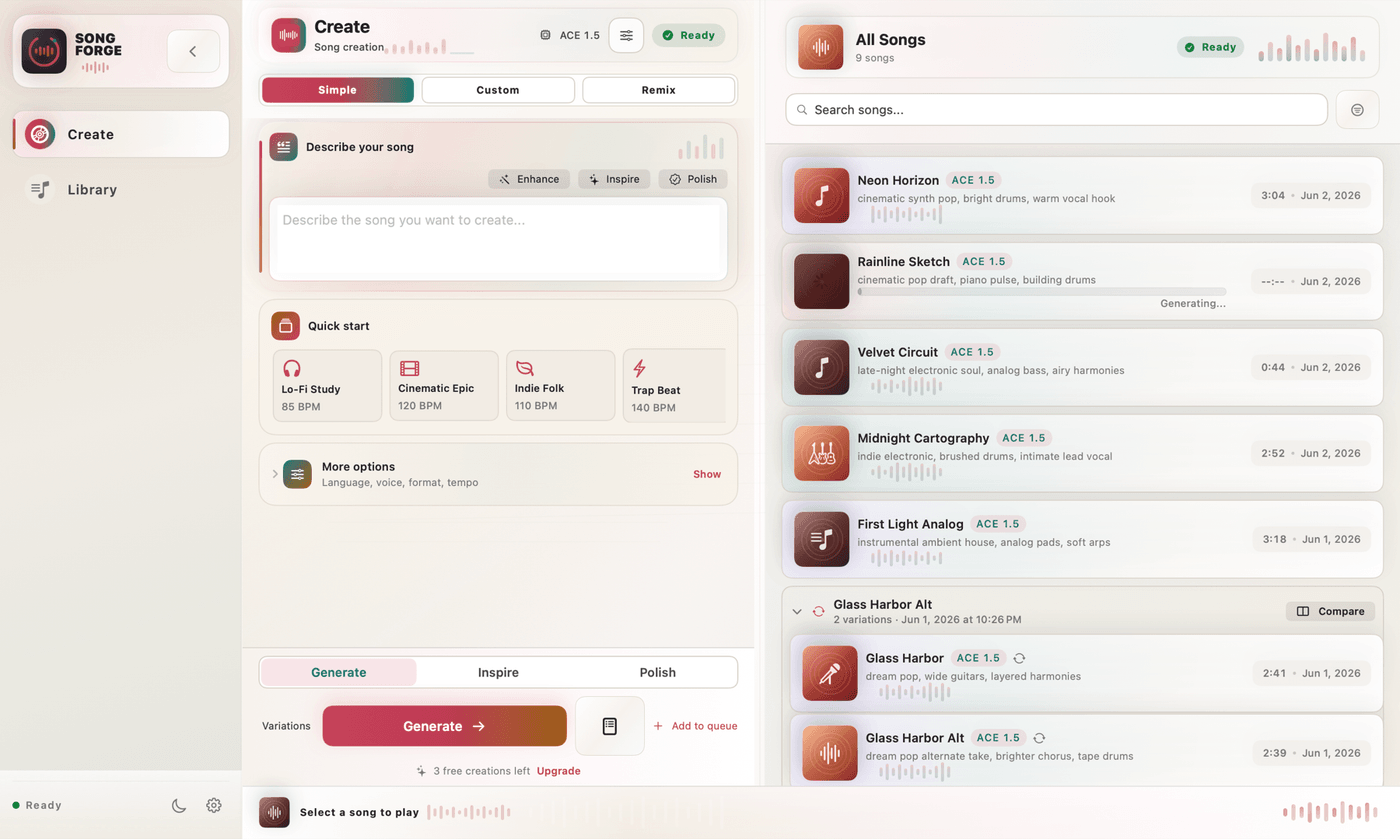
Real SongForge creation workspace and Library with demonstration tracks. Open the capture at full size to inspect the controls.
Listen for one change
On your first listen, ask where your attention went. Did the track leave room for the video? Did the opening match the scene? Was there a section you wanted to hear again?
Write a short response: “Keep the piano, reduce the percussion,” or “The opening works; the middle needs less movement.” Then change one important part of the brief. Keeping the previous take makes the comparison much easier.
Try listening at a similar volume each time. A louder version can make a quick comparison harder to judge. If you are adding music to a video, listen with the spoken audio playing as well. The relationship between them is the part you are trying to get right.
Keep a usable result
SongForge supports MP3 and WAV export through its paid Pro unlock in the public version checked for this guide. Once that option is available to you, choose a format your next editing tool accepts, export a take, and open the exported file separately. Check the beginning, ending, and the section you actually plan to use.
Save the brief beside the audio. You can use an ordinary folder with a date, a short project name, and the take number. A small text file explaining why you kept a version is surprisingly helpful when you return later.
Before sharing or using a track commercially, check the terms of the app, the specific model, and any material you supplied. An export button does not answer every rights question. Avoid using recordings or lyrics you do not have permission to use, and do not assume a generated track is unique.
Grow the studio around the work
You may eventually want an audio editor, a DAW, a microphone, or more detailed arrangement tools. Let an actual project tell you which addition would help. SongForge is a place to generate and explore music ideas; a complete recording, editing, and mastering workflow can involve other software.
For the next session, bring back one brief, one saved take, and one thing you want to change. That gives your new music habit a place to continue. By 2027, you could have a small collection of experiments whose decisions you understand, and a better sense of what you enjoy making.
Explore SongForge's setup and product details and its privacy boundaries before choosing your workflow. Normal standalone generation is local after setup; downloads, Store services, and optional integrations have separate network requirements.
2027 planning edition. Product facts checked on 26 October 2026 against the public listing and product documentation. Both images are existing captures of the real SongForge interface with demonstration content.